Friday, June 20, 2014

Now Where Did I Put That Code? Ah, my Custom Snippets!

If you’re anything like me (and I’ll assume you are unless you randomly pick blogs to read) then you’ve been writing iLogic code for the past 3 years or so and have amassed a large amount of code.  All that code is probably sitting in various part, assembly or drawing files.

About a year ago I decided I needed to do some tidying up and figure out a way to store all my iLogic code in a manner that I could easily search, retrieve and copy the code I know I have somewhere…it does X…and I wrote it for client Y….I think.

I am still on my quest to find the perfect vehicle to do everything but I recently decided to take a closer look at the simple storage method that Autodesk already gives us, Custom Snippets.

Custom Snippets work the same as the System Snippets with the difference being they are your code.  They are an easy way to insert your own bits of code into your iLogic rule.  

Let’s say I've written a few lines of code that I’ll be using in a few different parts in my current project.

Now, there are multiple ways of getting this rule into parts.  I could put it in the template, I could use external rules, I could use the Code Injector (which is a lovely tool that you should check out if you don’t already use it).  I don’t want to argue the merits of each of these and just focus on Custom Snippets for now.

One decision to make is how you want to categorize your Custom Snippets.  You can create individual categories for specific projects, clients, code type, etc.  I prefer to create categories by either code type or client name and saving my snippets that way.
To insert a new Snippet category, right click in the Custom Snippets window and choose Insert Category.  Enter a category.  In this example I’ll be categorizing them using client names and call this one ACME.  Unfortunately you cannot create nested categories.


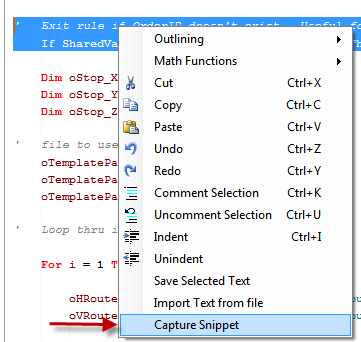
Once you’ve created a category, it’s time to start filling it up with all that helpful code you’ve already written.  Highlight the code in the Rule Editor that you want to save (I always select all the code, including empty spaces or tabs to the left so that they are captured), right click and choose Capture Snippet.  
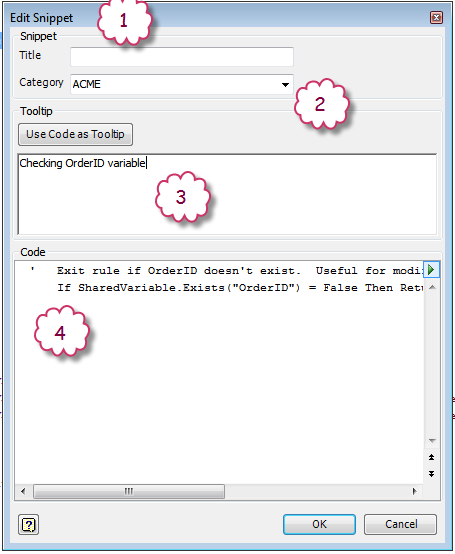


You’ll be presented with the Edit Snippet dialog box.


  1. Title of the Snippet.  This shows in the Snippets listing.
  2. Which category would you like to store the Snippet?
  3. Text entered here will show up as a tooltip when hovering over the Snippet in the Snippet listing.  I prefer a short blurb rather than using the code as the tooltip.  The code is shown at the bottom of the tooltip by default.
  4. The code you highlighted will show up here.  You can edit here but I find it easier to edit in the Rules Editor.

As my favorite knigget said “That’s easy!” 

You insert a Custom Snippet the same way as inserting a System Snippet, simply double click on it to insert it into the Rule Editor and edit as required.

A few other helpful things about Custom Snippets:
  • When deleting a Snippet Category, you’ll get asked if you want to delete the rules inside that category or move them to a Default category.
  • You can drag and drop snippets from one category to another.
  • You can merge snippets from one file to another using the tool on top of the Custom Snippets tab.
  • If you create a category but don’t put a snippet inside of it, the category will not save.
  • Use the Save and Open buttons at top to make sure everyone on your design team is pointing at the same Custom Snippets file.

I am still on the lookout for other ways of storing iLogic rules.  Ideally, something that multiple users could access and easily search for keywords and tags.  If you have any suggestions that you’d like to share, please leave a comment below.

Randy

"Challenge yourself with something you know you could never do, and what you'll find is that you can overcome anything." - Anonymous


Monday, June 16, 2014

2015 Purge Unused Parameters & iLogic Rules

With the release of Inventor 2015, we finally have an easy built-in way of purging unused parameters in both assemblies and parts.  In the Parameters dialog box is the new Purge Unused command:


Warning
This command checks to see if a parameter is used in a feature.  It does not check to see if the parameter is only being used in an iLogic rule.

Hopefully this will save you from an OOPS.

Randy

"There are only two mistakes one can make along the road to truth; not going all the way, and not starting." - Buddha


Wednesday, June 11, 2014

Placeholders on iLogic Forms

I recently had a case where a colleague was setting a custom iProperty (Program Number) to either the file name or a custom field and he was using a boolean parameter to determine which of these to use to set it.

Here is his original code:
'********************************************************
'Set Program Name

If Set_Prog_Name = True Then
    iProperties.Value("Custom", "Program Number") = ThisDoc.FileName(False) 'without extension
Else
    iProperties.Value("Custom", "Program Number") = ""
End If

'********************************************************
We can see from the original code that when Set_Prog_Name = False that the Program Number will be set to <blank>.  He needed a way to allow the end user to enter a value in the Program Number field.

My immediate response wast to set up an input box but he preferred to not have an additional dialog box.

The end solution was one to add a placeholder iProperty, which I called Program_Name_Temp, on the form in place of the original Program Number and set the value of the Program Name iProperty equal to the placeholder when Set_Prog_Name = False.  As an additional bonus, I added a controlling parameter for Program_Name_Temp which is called Set_Prog_Name_Controls.

'********************************************************
'Set Program Name

If Set_Prog_Name = True Then
    Set_Prog_Name_Controls = False
    iProperties.Value("Custom", "UserInfo2") = ThisDoc.FileName(False) 'without extension
    Program_Name_Temp = iProperties.Value("Custom", "Program Name")
Else
    Set_Prog_Name_Controls = True
    iProperties.Value("Custom", "Program Name") = Program_Name_Temp
End If

'********************************************************

I hope this helps you on a future or current project.

Randy

"Even if you're on the right track, you'll get run over if you just sit there ." - Will Rogers

Monday, March 17, 2014

An iProp for the unique items

A request came in for a modification on the 'iProp For Everyone' post.  The post requested for the code to ignore additional instances of an occurrence.

One way of doing this is by using the AllReferencedDocuments.  There is only reference per file so this approach will take care of the unique item issue.  This differs from the original alternative approach I took where I looked at the ComponentOccurrences.

'   Get the active assembly. 
    Dim oAsmDoc As AssemblyDocument 
    oAsmDoc = ThisApplication.ActiveDocument
    
'   Get the PropertySets object. 
    Dim oPropSets As PropertySets 
    Dim oPropSet As PropertySet 
    
'   Iterate thru each referenced document
    Dim oDoc As Document 
    For Each oDoc In oAsmDoc.AllReferencedDocuments 
        oPropSets = oDoc.PropertySets
        oPropSet = oPropSets.Item("Inventor User Defined Properties")     

        Try                                                
        '    Push the required iProperties down to the documents
            oSONumiProp = oPropSet.Item("SO_Number")
            oSONumiProp.Value = Sales_Order_Number
            oCompanyiProp = oPropSet.Item("Company")
            oCompanyiProp.Value = Customer_Name
            oProjectiProp = oPropSet.Item("Project Description")
            oProjectiProp.Value = Project_Description
        Catch
        '    Do not raise or display an error.
        End Try
    Next 


Hopefully you see some benefit in the above solution.  Leave me a comment and let me know.

Randy

"The mind is everything. What you think you become." - Buddha

Thursday, January 30, 2014

Pictures are worth how many words?

iLogic Forms are how you interact with your iLogic models.  They are the user interface that you use to enter parameters, make selections and run rules that are necessary to complete your configuration.  The iLogic Form Editor is the tool that is used to layout and design those forms.  

The main sections of the Form Editor are:

  A) Parameters / Rules / iProperties
  B) Toolbox
  C) Form Design Tree
  D) Properties


The Form Editor uses drag and drop functionality to build a form.  You simply drag items from the Parameters / Rules / iProperties or Toolbox section and drop them on the Form Design Tree.  You then modify the properties of those items using the Properties section.

While it is not necessary to have any rules or parameters before creating a form, it is generally a better workflow to at least have the main parameters created so that you have something to work with.  I generally set the parameters that I’m going to use on my form as Key parameters and use the handy filter in the Form Editor dialog box to easily find them to layout my form (it's in the upper left).

There are a lot of resources for finding information on creating a basic form.  I’d like to focus on one of the tools that isn’t easily understood, Picture and the Picture Folder.
  

Picture

Pictures can be used to display image files such as a company logo.  Acceptable image formats are .bmp, .gif, .png, .jpg, .jpeg & .tiff.  To include a picture in your form, drag the Picture tool from the Toolbox and drop it on your Form Design Tree.  The properties available for a Picture are:
  • Label – This is the name of the image that shows on the Form Design Tree and on the form if you decide to show it.
  • Image – This is where you specify the image file to use.  Click in the Image property and then on the ellipse button to specify the image file.  (Image should be sized before assigning it to the property).
  • Show Label – This is a Boolean property that controls whether or not the Label property is displayed on the form.  If this is set to True then the Text Location property becomes available.
  • Text Location – Only available if the Show Label property is set to True.  This property controls the location of the label on the form.  You can choose from Left, Right, Top & Bottom.
  • Picture Parameter Name – This property is used in conjunction with the Picture Folder property.  Set this property to a Text user parameter with a multi-value list that will control which picture from the picture folder is displayed.
Note:  If the Picture Parameter Name property has a parameter, it will override the image that is selected in the Image property.

Picture Folder

An even better use for pictures is to have them change based upon selections your user makes in the form.  The Picture Folder is used in conjunction with the Picture tool and is used to display multiple images in this manner.  By default, the Picture Folder comes in with 2 possible images but can be increased by dragging more Picture tools into it (just as if you were dragging a Picture tool onto your form).  Each picture that is part of the Picture Folder has two properties to modify:
  • Label – Populate the label property with a possible value for the Text parameter that was used in the Picture Parameter Name property.  This is how you set the link between the property and which image to display. If the value of the Label property does not match a value in the Picture Parameter Name multi-value list, the image will display the text ‘No image data’.
  • Image - This is where you specify the image file to use.  Click in the Image property and then on the ellipse button to specify the image file.

Note:  If you’ve already specified an image file to use and would like to update it, you’ll need to specify it again.  The updated image will not reload automatically.

 
Using Pictures and the Picture folder to drive images based upon selections can really help clarify things for your end user.


In the examples to the left, the user has two different End Designs to choose from.  I'm showing him those different designs using a Picture Folder.


Pictures really are worth 1,000 words!


Bonus tip about using the Properties area of the Form Editor:  You can double click in the box to make it toggle through all available options.  It's sometimes easier and quicker than using the drop down box.


Randy

“We cannot direct the wind but we can adjust the sails.” — Author Unknown

Wednesday, October 23, 2013

...An iProp For Everyone!

In my last post, I showed one solution to a common task of using assembly level parameters to set iProperties of part files in your assembly using an Array and a For Next Loop.  Using that solution, we specified each component that we wanted to push the iProperties to.

In this post, I'd like to discuss another solution that will push iProperties down to all components in your assembly, even those inside of sub-assemblies.


Sub Main
        Dim oAsmDoc As AssemblyDocument 
        oAsmDoc = ThisApplication.ActiveDocument 

    '    Call the function that does the recursion. 
        Call TraverseAssembly(oAsmDoc.ComponentDefinition.Occurrences, 1)
End Sub 

Private Sub TraverseAssembly(Occurrences As ComponentOccurrences, Level As Integer) 
    '    Iterate through all of the occurrences in this assembly.  Level 1 components. 
    
        Dim oOcc As ComponentOccurrence 
        For Each oOcc In Occurrences 
        
        '    Get the selected item document occurrence name
            Dim oBrowserNode As String
            oBrowserNode = oOcc.Name
    
                Try                                                
                    '    Push the required iProperties down to the occurrences
                        iProperties.Value(oBrowserNode, "Custom", "SO_Number") = Sales_Order_Number
                        iProperties.Value(oBrowserNode, "Custom", "Company") = Customer_Name
                        iProperties.Value(oBrowserNode, "Project", "Project") = Project_Description
        
                Catch
                    '    Do not raise or display an error.
                
                End Try
        
            '    Check to see if this occurrence represents a subassembly 
            '    and recursively call this function to traverse through it. 
                If oOcc.DefinitionDocumentType = kAssemblyDocumentObject Then
                    
                    Call TraverseAssembly(oOcc.SubOccurrences, Level + 1) 
                    
                End If 
        Next 
End Sub

The above code will go iterate through each occurrence in your assembly and set the required iProperties.  If the occurrence is a sub-assembly, it will also iterate through each component inside of that sub-assembly.

Hopefully you see some benefit in the above solution.  Leave me a comment and let me know.

Randy

"The only way to do great work is to love what you do." - Steve Jobs

Wednesday, October 16, 2013

An iProp for you, an iProp for you...

When creating a configurable assembly using iLogic, you’ll often need to push iProperties down to the part files in your assembly.  Quite often these are project specific iProperties such as Project Number, Client Name, Sales Order, etc.

Writing a separate line to push the iProperty down to each component in your assembly is not a very efficient way of going about it.

Another way of accomplishing this is creating an Array whose values include the components in your assembly and a For Next loop.

iPropArray = New String(){"Sideframe_RH", "Sideframe_LH", "End_Guard"}

For Each part In iPropArray
    iProperties.Value(part, "Custom", "SO_Number") = Sales_Order_Number
    iProperties.Value(part, "Custom", "Company") = Customer_Name
    iProperties.Value(part, "Project", "Project") = Project_Description
Next

The Array values are the browser node names of the components in the assembly.

Inside the For Next loop are the actions you want done to each part in the array.  In this case, I’m pushing down iProperties but with a little imagination, you can see how you could expand on this.

Now if I were reading this, I’d say “But Randy, what if I don’t want to list out all the parts.  I want to do the same action to all the parts in my assembly”.  My answer to myself would be “Yes you can do that Randy…but you’ll have to wait until the next post.

Randy

"Nothing can stop the man with the right mental attitude from achieving his goal; nothing on earth can help the man with the wrong mental attitude." - Thomas Jefferson